Hedgehog IT

May 2020: Windows 10 Feature Update is incoming!

20th May 2020
Windows 10 operating system logo

Microsoft’s next feature update to the ever growing Windows 10 is coming this month and it appears to be a big one!

We have some information about some of the upcoming updates ahead of release for you below;

Microsoft Windows Updates
With the latest feature update you will have more control over the Optional Updates Windows 10 receives, rather than automatic installation, you will now have the ability to pick and choose which of the optional updates you would like to install.

Another new feature coming to Windows Updates is the ability to control how much of your internet bandwidth can be used to download the updates. So if you need the your connection for remote working for example, (particularly as many of us now working from home due to Covid-19), you can now reduce how quickly Windows will download the updates – keeping plenty of bandwidth free for your remote working activities or even those online gamer’s out there! We feel this is a particularly great feature which is maybe more than just a little overdue on Microsoft’s part.

Windows Search
Windows Search is being improved with a quick-search option. When you start your search from the Windows home / Taskbar /Start menu search box, you will now see a quick search option, providing you with single-click access to Windows Store apps, such as News and Weather etc. Windows Search will now also use less of your disk space than previously, making it a little less resource hungry, always a plus!

Task Manager
This one is more for the enthusiasts out there; Task Manager will now display what type of disk drive you have installed in your system, whether that be an SSD (Solid State Drive) or an older-style HDD (Hard Disk Drive). So if you were unsure, you will soon be able to find out. The other notable upgrade to Task Manager, is that it will now display the temperature of your graphics card. This will be tremendously welcome and useful for gaming enthusiasts and PC connoisseurs who are interested in raw performance gains and system & graphics overclocking in particular.

Password-less Sign-in
Now this feature seems a little deceiving… whilst, yes, you will be able to sign into Windows without having to type a password, you will still need a pin code to be set up in order to sign-in. The setting will be called ‘Make your device password-less’ and can be found in the Settings app, under: Accounts > Sign-in page.

Network Updates
One to keep the Network Engineers pleased, Windows 10 will soon have improved network status facilities. The new feature UI will now show the status of all network adapters in your system, so basically, if you have a network port and built-in Wi-Fi, it will show the current live status of both adapters simultaneously.

At present, to use a network/IP camera and access its video feed on your computer, currently requires some 3rd party software (an app or program from a different vendor). However in the new Windows 10 feature update, Windows is now also getting built-in operating support for network IP cameras. No need to be downloading or installing additional software for this purpose again …unless you really want to of course?

Additional Features include:

  • Drag & Drop with your Eyes – drag and drop folders via compatible eye tracking monitors to use your eyes as an input device!
  • Paint and WordPad – these utilitarian old-school Windows features will now be optional (requiring manual installation)
  • New messenger-style chat interface for Cortana
  • Disk Cleanup – will no longer remove or delete files in your Downloads folder

Post Tag icon Microsoft Windows Windows Updates 

IT Security reminder for Windows 7 users in 2020

19th April 2020

Windows 7 operating system logo

As some of you may already know, back in January, Microsoft officially ended support for Windows 7. This means as a user, you no longer have access to security updates and patches for your Windows OS.

A statement on the Microsoft website reads;

‘You can continue using Windows 7, but your PC will become more vulnerable to security risks. Windows will operate, but you will no longer receive security and quality updates. Microsoft will no longer provide technical support for any issues.’

As stated in our previous post about Windows 7 end of life, we urge all users to move to Windows 10 where humanly possible.

Running Windows 7 in 2020

If you are still running Windows 7 and do not wish to upgrade to Windows 10 any time soon (for whatever reason), we can only stress the absolute importance of running up to date and efficient internet security software on top of your installation – to help provide additional protection while surfing online and being connected to the internet.

» Contact us to discuss best practices and recommended computer security applications for your Windows 7 machine.

As new exploits  and holes will continue to be found and targeting of non-savvy users systems who have not updated will grow, it is more important than ever to have sufficient security in place – and even that may not be enough to fully protect your computer from malicious attacks. Windows 10 has much higher levels of security than Windows 7 ever had, and some of the modern improvements to Windows Security in Windows 10 make it one of the most secure operating systems to date.

Some of Windows 10′s new security features include:

  • Windows Defender – this entry level computer security behaves like a firewall to prevent threats getting into your system
  • Microsoft Edge – After realising that Internet Explorer was being targeted the most for web threats, Microsoft decided it was time for a change and created their new browser named Edge, with security in mind. (Though we do still recommend Mozilla Firefox or Google Chrome by a long stretch, ahead of Edge.)
  • Smart Screen – works with your web browser to detect most threats trying to enter your computer and notifies you so you can make a decision about whether or not the files should be allowed in, or not.

As with most things, the more features added to a product at release, will lead to (at least initially), more bugs and issues to resolve post launch. While in most cases this is true, Windows 10 has been out for some time now and early niggles do seem to have been resolved via updates since its release.

With the added security of Windows 10, many people are questioning if they need any additional security software on their Windows machines at all. The answer to that one is still a resounding ‘Yes!’, despite the many security improvements.

As outlined above, Windows Defender is the baseline of security software, and while this does a fair job of preventing threats, it cannot stop everything and does leave you with some vulnerability and IT security issues moving forward. Smart Screen also only advises you of potential threats, recommending you do not proceed where their is cause for concern, though you can still over rule this. Modern browser market share stats indicate that most users don’t use Edge as their primary web browser either, as they have over the years built up a preference to third party browsers such as Firefox and Chrome.

With this in mind we urge everyone to opt for a sufficient anti-virus / internet security solution to run on your Windows system. These dedicated applications aside from their increased quality of security on offer, also provide:

  • Customisable or on-demand scanning of your system (we recommend quick scanning weekly and full scanning at least once a month)
  • Scheduled and customisable updates; you can decide how long to wait between updates with most security applications now making available update checks on an hourly basis to ensure you have the latest protection in place, and when to install the updates too.
  • Safe browsing settings to allow black-listing and filtering of potentially unwanted websites and web traffic.
  • Some also include a ‘safe browsing tab’ where your browser opens up in an encrypted fashion to help keep your passwords more secure.

The market for internet security software is wide and varied in terms of what is on offer at the moment, and it can be puzzling trying to decide which is the best option for you. However, getting additional security in place on your Windows PC or laptop is vital and one of the most important things you must do, if you plan on surfing the web!

We offer free and impartial advice on all manner of Internet Security software, and free trials of some of the latest anti-virus and internet security products available.

Supply or install, on-site or remotely if you wish, our installation service provides additional and bespoke configuration to help improve your computing experience too, be that; silent protection that runs in the background or a more visible experience so you are kept in the loop and aware of what is going on with your system in terms of security.

If you would like to discuss your IT security needs for your PC, laptop or indeed office or place of work IT network, then don’t hesitate to get in touch, or give us a call on 0844 589 9946 – we’d be delighted to hear from you!

Post Tag icon Microsoft Security Windows Windows Updates 

How to… Work From Home (connecting to your work office using Remote Desktop Connection)

30th March 2020

With the rise & spread of COVID-19 globally, businesses, employers and freelancers everywhere are asking employees to work from home during the current UK lockdown due to Coronavirus. To help you get started, we’ve compiled a quick How to… work from home.

Our guide explains how to go about getting a connection established from your system to your workplace using Windows, Remote Desktop Connection tool.

If your network is not managed by Hedgehog IT, we do advise that you check with your employer or tech team to make sure they have a sufficient number of unused server licenses to allow you to remote connect. You may also need to clarify the external IP address or host address for your work place in order to make a remote connection.

Let’s get started… 

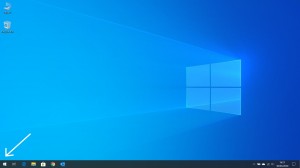
  1. Firstly, click the Windows ‘Start’ menu button, also known as the ‘Windows button’ which can be found in the lower-left corner of your screen.

    Windows 10 Start Menu

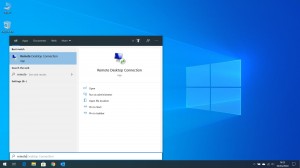
  2. Next, either browse through your Start menu until you find the ‘Remote Desktop Connection’ app, or you can quick search, by typing “remote desktop” which will filter the items in your Start menu (see below). Once found, click on the ‘Remote Desktop Connection’ result to open the remote connection app.

    Windows 10 Start menu showing RDC search

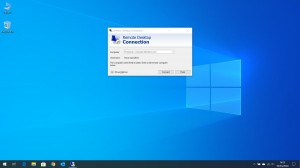
  3. Once launched, the Remote Desktop Connection app will ask you for some details in order to help it connect you to your work environment (network or server).The first field, for ‘Computer’, should either contain a registered domain name (associated with your work places’ company server) or the external IP address of the same. These details will need to be supplied by your employer or work place’s IT support team.

    Once the required information has been typed in, click ‘Connect’.

    Remote App Desktop

    Note; that a domain name (if provided) would look almost like a regular website address/URL and an IP address, would consist of four blocks of numbers, each separated by a full stop and may also include a port number after the fourth block, separated again via a colon.

  4. You will be prompted to enter a username and password – this should be your username and password you use to connect to the computers at work, Click ‘OK’.

  5. Depending on your company’s server settings you could be prompted to accept a certificate, you can click ‘Accept’ on this.

You should now be connected to your User Account on your workplace server or network environment!

Experiencing IT problems working from home?

If you’re having any difficulties getting a remote connection to your work computer, server or network established or have any other realted IT issues at all, feel free to give us a call, we would be more than happy to help. So don’t hesitate to get in touch or call us on 0844 589 9946 (local rate).

Post Tag icon How To... Windows 

Getting Coronavirus Ready!

5th March 2020

As the COVID-19 coronavirus epidemic enters the UK, we thought it may be helpful to compile and pull together some useful information to help you get ready for the coronavirus in terms of ‘WFH’ – Working From Home. Something that you are likely to hear a lot about in the coming weeks.

What is needed to work remotely?

The majority of UK businesses are not likely to have had a real need for remote working on a prolonged or regular basis. Therefore, it is reasonable to consider that they may also not necessarily have the capabilities required for working from home or remote locations built into their IT systems, network or infrastructure.

As an employee, this means that you may not be able to work remotely at all or at best, your computer system / work infrastructure may be at risk while doing so and productivity could suffer. It’s a good idea to think about or plan the types of work that you or your workforce could possibly undertake in a remote scenario. Do you have access to the files and resources needed to do your job? Would your role or work activities and tasks need to be amended to adapt to working remotely?

All of these considerations are why it is so important to ensure businesses are prepared for remote working (whether needed or not), the fundamentals of which are:

  1. a stable Internet connection
  2. a laptop or secondary computer  to work on (away from your usual work place)
  3. access to work place resources (this could be your network, files and/or emails, etc), and accessed via:- a remote connection to your work place or office-based workstation
    - VPN access to your workplace network
    - applications for holding online conferencing and meetings if required (think Skype, Zoom, etc)
    - access to work email from your personal devices (if permitted)

As long as your laptop, secondary computer or device is capable of the top three primary requirements (above), you should find that you are well equipped and able to work remotely fairly easily.

Sofa-bound typing hands on a laptop

Access to smart devices, digital tools and apps for conference calling and multi-user collaboration in 2020, all help to cut the cord of the work place and gain the freedom to work from anywhere required- or desired!

That is, anywhere there is a reliable internet connection (either cabled, by Ethernet or wireless, by WiFi) of course.

Modern devices like smartphones and tablets can do a lot of the heavy lifting traditionally handled by large, clunky computers & laptops of yesteryear and mobile devices today are often capable of greater horsepower, fulfilling a multitude of different productivity tasks, simultaneously, compared to their older counterparts.


Being prepared for remote working

Many small businesses don’t tend to have a reliably-typical ‘norm’ when it comes to their work day, as varying jobs, workloads and unforseeables’ often change plans which vary day to day. Add in an epidemic like the coronavirus into that scenario and you have a recipe for possibly the largest source of disruption to businesses of any size.

Across the globe, remote working employees and freelancers working from home have been on a slow but steady rise throughout a number of industries. At the polar opposite end of this scale is the business that has never undertaken any sort of remote access, or, allowing everyone within any given workforce to work remotely. The later though, is a very different proposition to the former. A remote large workforce means additional considerations need to be given to your IT security, to name but one factor that is important to analyse and prepare.

Permitting remote working on a large scale should be evaluated thoroughly prior to deployment, with due care and attention given to all risks and aspects before roll out.

We also wrote a Remote Working guide back in June which you can check out for further advice and tips.

While many large firms like Google and Twitter have encouraged workers to work remotely for some time, the majority of companies in the UK tend to lean towards a more traditional, office-based work environment. As of time of writing, the UK government is yet to request businesses adopt a remote working model to help combat the outbreak but as more and more cases of COVID-19 infections are discovered, this could change. Government officials believe that around one fifth of the UK workforce could end up contracting the virus and end up off-work. Ensuring you have plans in place for remote working could prove key to helping keep your business a float, keep your job or your staff and employees productive; whilst also minimising the spread and disruption of the virus.


Want to get Coronavirus-ready?

If you have any questions about remote working you can contact us. Perhaps are not sure if your current IT infrastructure permits remote access or simply would like to discuss the possibility of preparing yourself, your business, workplace or workforce for working remotely, give us a call.

Our friendly team are available to answer any questions or discuss your present situation to help and advise you.

Get in touch or call us today on: 0844 589 9946

Post Tag icon How To... Industry News Local News 

14th January 2020 : The End of the Line for Windows 7

14th January 2020

Windows 7 operating system logo

As of today, Microsoft will officially axe the support for its ageing operating system, Windows 7. Over the last 10 years of its life, Windows 7 has served for many business and residential users alike, as a direct replacement for the retired and much-loved Windows XP.

Windows 7 was originally released in October 2009 and built on the foundations of its predecessor, Windows Vista (which launched in 2006), but corrected many of the issues that had plagued the release and unfortunately lead Windows Vista to have a bad reputation.

The termination of support for Windows 7 means that security patches, fixes and general Windows updates will cease and in time leave your system more vulnerable to attack if exploits or holes in the OS are spotted or found. The lack of updates means that the system will no longer know how to deal with new threats that come its way, or targeted malicious attacks.

Over the next 12 months, software vendors will also largely cease their support for desktops and laptops running Windows 7, and likely halt further development and updates to their own software and apps for users still running the OS. Many of whom have already stopped their own support as of today, along with Microsoft.

With this in mind, we highly recommended that any computer systems running Windows 7 are immediately upgraded to Windows 10 where humanly possible. If you need help with planning your Windows upgrades or have concerns about software key to your business, you can contact us for a consultation about your upgrades. We’ll be happy to help and advise. With the current operating system marketplace, Windows 10 is the preferred choice – said to be the last major release of Windows that Microsoft will produce, feature releases and significant updates are planned to be pushed out at least every 6 months moving forward.

So an upgrade to Windows 10 could be the last significant desktop OS update you need to make!

Post Tag icon Microsoft Windows 

How to Work Remotely (Safely and Securely)

19th June 2019

Working from home remotely is becoming more and more popular, particularly across tech-based roles, with start-ups and the increasing number of freelancers. However there are a number of security concerns which all remote workers should be aware of that could also prove to be huge security flaws which employees, and even their employers, are likely to be completely unaware of.

In light of this, we have put together a series of hints and tips for how to help secure your session(s) and your computers or devices when working remotely;

  1. Public Wi-Fi: We would recommend not connecting to a public WiFi network (at all if you can help it), but especially not for remote work if at all possible. Public Wi-Fi far from guarantees your security and if anything actually leaves you more vulnerable to malicious attacks, content and snoopers on the same network. It is always recommended to use a personal (home or family member’s) Wi-Fi network or even a hotspot from your mobile phone when available; this is known as ‘tethering’; where you share the data connection of your smart phone with your tablet or laptop to enable it to access the internet), rather than your local coffee shop’s free wireless network. Also, encrypt your web connection by using a VPN!
  2. System Updates: Always ensure that your devices‘ software and operating system (including apps) are up to date. Most operating systems and devices are able to download and install security updates for you automatically. Microsoft‘s updates include OS patches, bug fixes and security updates for Windows systems, and tend to be released on Tuesday evenings If you’d like to set an hour aside to review the changes? Alternatively, you can set Windows Updates to install automatically – meaning you can relax in the peace of mind knowing that your system will be running the latest Windows build.
  3. Network Seperation: While connecting your personal laptop or device to a business network is helpful it could also present security risks. It is recommended that business networks are segmented in such a way to allow everyone to access resources, but at the same time, protect the network itself by preventing remote workers’ personal devices from communicating directly with any internal business systems or workstations. Resource use but not on-site system control. There are numerous ways of doing this, via internal routing using VLAN’s or via separate internal routers with customised firewall settings for instance.
  4. Security for your EndPoints: From a security standpoint, it is important that IT departments or your IT team / consultant(s) can see what is happening with devices on and off the local network. This helps with the detection of abnormal behaviour that could assist in the protection of the entire network infrastructure – endpoint protection or internet security software is essential to safeguard your systems, network and ultimately, data!
  5. Common Threat Detection : Ensuring that all staff are well educated in how to spot and stop a basic phishing attack and other common types of system attacks is a really good idea. Regular training and frequent refresher courses are critical to help any workforce learn how to pickup on and respond to these common attacks and alert IT consultants.
  6. Password Policies: This has to be one of the world’s most overlooked security holes, as to many it’s just a big inconvenience. Passwords should be changed at a maximum interval of 60 days (preferably 30 days for mobile devices). Routers and other critical systems and network hardware should always have long password strings. Something the length of a full sentence works well to prevent unauthorised access and makes the job of brute-forcing the access it all the more difficult.
  7. Two-Factor Authentication: Last but not least, Two-Factor Authentication (2FA) literally adds an additional layer of security to any network. It is especially good for businesses, helping to prevent access by anyone but the pre-authorised employees. Access can be gained either via a PIN code or push notification code received by SMS (aka, text message) or email verification and ensures the user accessing the system has been authenticated, twice-over.

We understand that a someof the above may sound fairly technological and maybe a lot to take in, but if you’d like to discuss securing your IT network in order to safely allow remote working or even if you’re unsure of how secure your network or IT infrastructure actually is, then send us a message and get in touch with our friendly engineers.

Our team is ready and more than happy to talk over your existing set up, provide recommendations to tighten up your security or set up remote working for you and your staff.

Post Tag icon How To... 

The return of AMD

3rd March 2017

AMD Ryzen (logo)

Today is an exciting day in the long-term processor war between Intel and AMD. In recent years Intel has been out and out in front however the release of the highly anticipated Ryzen processors is sure to create some stir!

Early reports by AMD show that their new Ryzen chips do outperform Intel’s, however it’s also known that sometimes providers cherry pick tests that they know their hardware will excel on. Only time will tell whether these new high-powered chips are actually as good as AMD claim them to be but if they can get close to Intel’s performance levels, factoring in the lower prices of AMD chips over Intel’s SKUs it could prove beneficial to AMD in sales.

The first three processors to be released are the Ryzen 7 chips, believed to be the performance chips in the series, these of all coming with 8-cores, 16 threads and base clock rates, ranging from 3.4GHz to 4GHz.

Over the coming months we expect to see more processor releases including the 4 and 6-core Ryzen 5 chips, with low end Ryzen 3 series being slated for release a little later in the year.

Post Tag icon AMD Ryzen 

2016 MacBook Pro goes Space Grey!

29th October 2016

Apple has finally announced anupdate to its popular MacBook Pro line of notebook computers. Referred to simply as ‘MacBook Pro’, the new 2016 model brings in a slurry of changes!

‘Thinner, brighter, faster and very touchy feely’

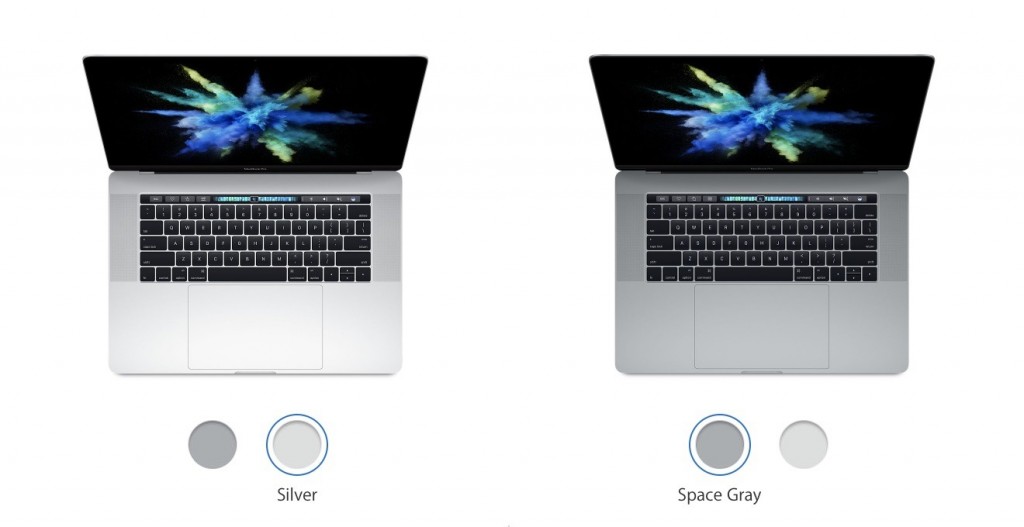
Arriving in Apple’s standard 13″ and 15″ inch variants, the new family of MacBook Pro evolves the unibody design of the prior generation, reducing in size even further and sporting a cool new ‘Pro’ look they call, ‘Space Grey’.

2016 MacBook Pro in Silver and Space Grey

The new 2016, 13-inch MacBook Pro measures 14.9 x 304.1 x 212.4mm and weighs 1.37kg with the 15-inch MacBook Pro measuring 15.5 x 349.3 x 240.7mm and weighing 1.83kg.

The internals have been compeltely redesigned along with a new cooling system exhausting air out the back of the device, with a ‘Force Touch’ haptic feedback trackpad that has grown in size and a display as thin as its 12″ inch cousin, ‘Macbook’.

The biggest changes however come in typical Apple-style, stripping out all of the legacy ports and replacing them with Thuynderbolt 3 ports. Only. Yes, that means no more USB-A, 2.0, 3.0, LAN/ethernet, not even an SD card reader! It’s Thunderbold 3 all the way. Also new, is the inclusion of a ‘Touch Bar’ above the main keyboard where the Function keys used to reside. The Touch Bar features an OLED display who’s functionality changes depending on the context of your activity on-screen. Similar to how an iPhone screen’s controls change depending on what is on-screen on that too.

Entry-level systems however retain the old-hat function keys and also lose 2x Thunderbolt ports. That Touch Bar though… that is the talking point of this new generation, which apple demonstrated extensively in its Keynote this week.

Intel processors continue to power the Macbook lineup, starting with a 2.9GHz Core i5 (combined with 256GB SSD and 8GB memory), configurable up to an Intel i7 with an array of SSD, memory and graphics options to tailor your machine.

Prices start from £1,499 for the non-TouchBar model, £1,799 for the 13″ with TouchBar and £2,349 for the 15″ inch variant with TouchBar.

Specification customisations could see those prices rise above £4,000 for a fully spec’d out, top of the line, 15″ inch model. Dongles will be needed, but boy are these gorgeous looking machines!

Post Tag icon Apple MacBook 

Samsung Galaxy Note 7 Production Halted. Permanently.

8th September 2016

logo-samsung

Samsung has officially halted production of its exploding Galaxy Note 7.

The South Korean manufacturer confirms production has officially ceased after reports of the device catching fire and exploding. The news comes after a recent recall of 2.5M units amidst rising numbers of complaints.

Samsung Galaxy Note 7 box

Despite initially insisting all affected devices had been replaced and were safe, additional reports, of at least five replacement devices in the US surfaced of the phones catching fire! This double whammy is sure to cost Samsung considerably the confidence and trust of their consumers. The primary reason premium brands like Apple and Samsung do so well is the perceived quality and reliability of their products, so damage to the South Korean tech giants reputation looks unavoidable.

Although an estimated 45,000 pre-orders from European customers had been taken, these will now not be fulfilled. It seems the product is destined to never reach the UK market.

A statement released last week from the company on their website read;

Samsung is committed to producing the highest quality products and we take every incident report from our valued customers very seriously.

In response to recently reported cases of the new Galaxy Note7, we conducted a thorough investigation and found a battery cell issue. To date (as of September 1) there have been 35 cases that have been reported globally and we are currently conducting a thorough inspection with our suppliers to identify possible affected batteries in the market. However, because our customers’ safety is an absolute priority at Samsung, we have stopped sales of the Galaxy Note7. For customers who already have Galaxy Note7 devices, we will voluntarily replace their current device with a new one over the coming weeks.

We are working with our carrier partners to announce the details of the U.S. product exchange program as soon as today.

We acknowledge the inconvenience this may cause in the market but this is to ensure that Samsung continues to deliver the highest quality products to our customers. We are working closely with our partners to ensure the replacement experience is as convenient and efficient as possible.

Post Tag icon Samsung Smartphones Tablets 

iPhone 7 could lose its Headphone jack!?

31st August 2016

Apple news from Hedgehog IT

The rumourmill is swirling concerning the upcoming Apple iPhone 7 relrease this Autumn. Rumours posted online state the tech giant is to ditch the legendary 3.5mm headphone jack on the new iPhone later this year.

Apple of course is no stranger to ditching standard technlologies in their products. Famously in 1998 they ditched the floppy disk drive from their, then new, iMac G3, instead touting CD-ROM and USB technology which was new to the industry at this point.

The iPhone era opened up in 2007 with Apple’s entry into the mobile telephone market lacking any form of physical keyboard. Though we shudder at the thought now of typing on tiny physical keys (BlackBerry anyone?).

2008 saw the axing of the same disc based tech they were pushing in the late 90′s, with the MacBook Air launching with only a single USB, a micro-DVI port and… a headphone jack. This new iPhone rumour though, feels different.

The iPhone 7 won’t necessarily come with any tangible benefits to losing the Jack. It won’t charge faster, be slimmer, or lighter to any great extent and of course (aside from rendering most people’s headphone incompatible) will prevent charging and listening to music at the same time. The headphone jack has been around since 1978 and is a staple in elecrtonic audio products far and wide. So why would the worlds leading tech company do such a thing?

Bluetooth.

Apple see’s wireless technologies such as bluetooth to be the future. No doubt there will be a slew of adapters to restore 3.5mm functionality if this comes true, but the push towards bluetooth headphones looks to be the clear intent. Could Apple be working on their own set of wireless headphones perhaps? It was only two years ago, in 2014, that they purchased market leader Beats from Dr. Dre for an estimated $2.6 Billion. Beats of course produce a range of wired and wireless (Bluetooth) headphones which are sure to become ever more popular once the iPhone 7 hits stores. So the benefits for Apple are clear.

How this will affect consumer mood and influence purchasing patterns, we’ll soon see!


Update:

During the iPhone 7 keynote announcement yesterday (16th September, 2016) Apple did indeed announce their own wireless pair of earbuds alongside the new Apple Watch Series 2. The new earbuds are named AirPods and utilise bluetooth technology to play music and audio from the iPhone 7 over the air and come with a charging case. AirPods will go on sale next month and interestingly are said to be compatible with any bluetooth device that supports Bluetooth 4.0 or higher (including Windows laptops and Android devices).

Post Tag icon Apple