
How to… Work From Home (connecting to your work office using Remote Desktop Connection)
30th March 2020
With the rise & spread of COVID-19 globally, businesses, employers and freelancers everywhere are asking employees to work from home during the current UK lockdown due to Coronavirus. To help you get started, we’ve compiled a quick How to… work from home.
Our guide explains how to go about getting a connection established from your system to your workplace using Windows, Remote Desktop Connection tool.
If your network is not managed by Hedgehog IT, we do advise that you check with your employer or tech team to make sure they have a sufficient number of unused server licenses to allow you to remote connect. You may also need to clarify the external IP address or host address for your work place in order to make a remote connection.
Let’s get started…
-
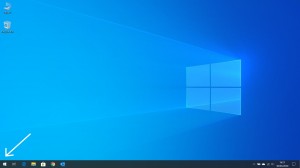
Firstly, click the Windows ‘Start’ menu button, also known as the ‘Windows button’ which can be found in the lower-left corner of your screen.
-
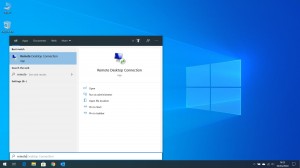
Next, either browse through your Start menu until you find the ‘Remote Desktop Connection’ app, or you can quick search, by typing “remote desktop” which will filter the items in your Start menu (see below). Once found, click on the ‘Remote Desktop Connection’ result to open the remote connection app.
-
Once launched, the Remote Desktop Connection app will ask you for some details in order to help it connect you to your work environment (network or server).The first field, for ‘Computer’, should either contain a registered domain name (associated with your work places’ company server) or the external IP address of the same. These details will need to be supplied by your employer or work place’s IT support team.
Once the required information has been typed in, click ‘Connect’.
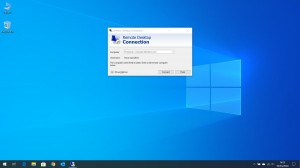
Note; that a domain name (if provided) would look almost like a regular website address/URL and an IP address, would consist of four blocks of numbers, each separated by a full stop and may also include a port number after the fourth block, separated again via a colon.
-
You will be prompted to enter a username and password – this should be your username and password you use to connect to the computers at work, Click ‘OK’.
-
Depending on your company’s server settings you could be prompted to accept a certificate, you can click ‘Accept’ on this.
You should now be connected to your User Account on your workplace server or network environment!
Experiencing IT problems working from home?
If you’re having any difficulties getting a remote connection to your work computer, server or network established or have any other realted IT issues at all, feel free to give us a call, we would be more than happy to help. So don’t hesitate to get in touch or call us on 0844 589 9946 (local rate).

 No Fix - No Fee Policy
 Free Network Evaluation